Usage
Create an Announcement Banner to be shown to your users
Navigating to the app
-
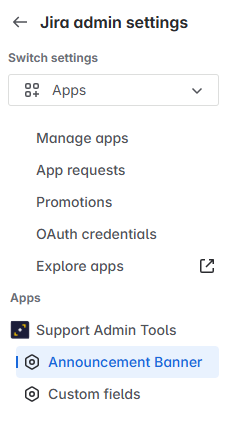
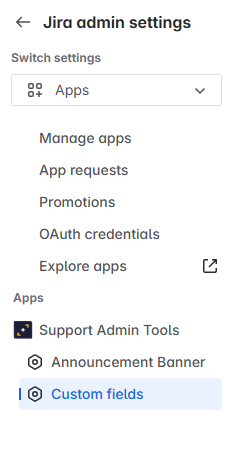
Go to “Apps” → “Support Admin Tools” : “Announcement Banner”
Creating a new Announcement template
-
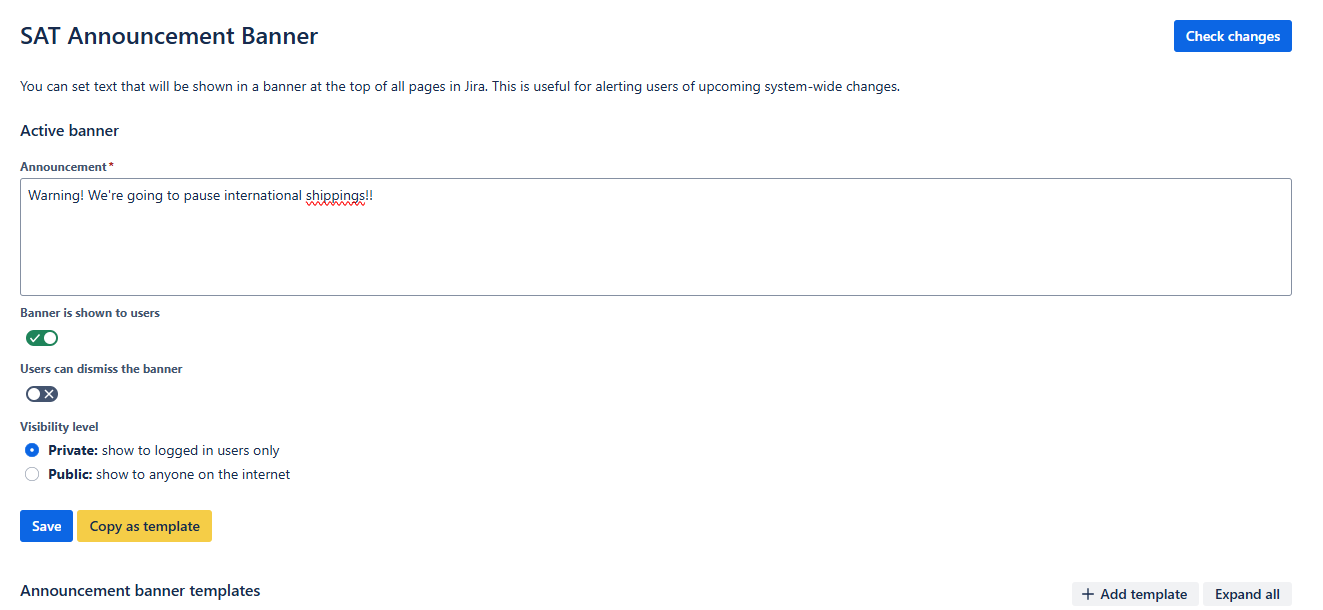
Click on “Add template”
-
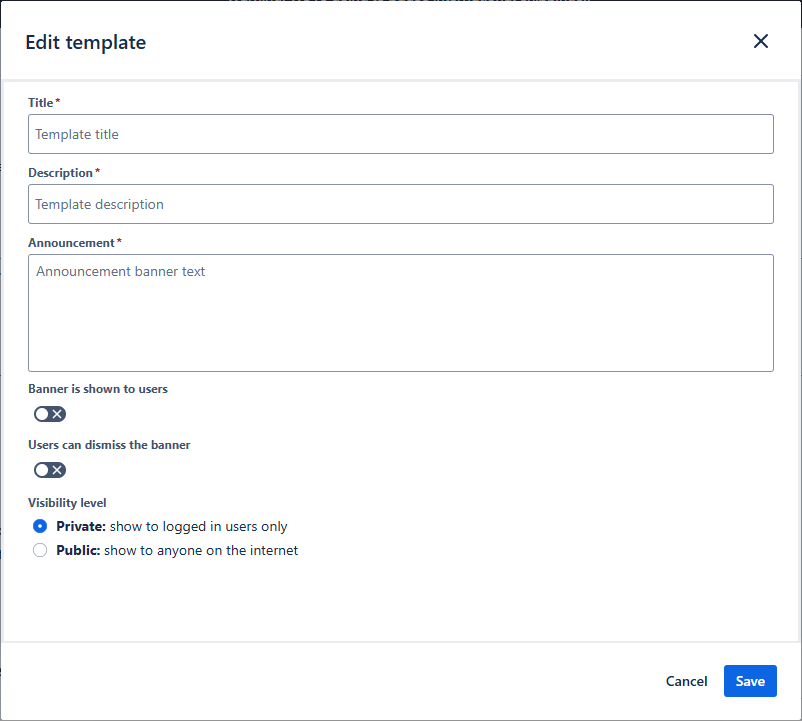
Add the content of the announcement and give it a “summary name”.
-
Make sure to “Save” the template.
-
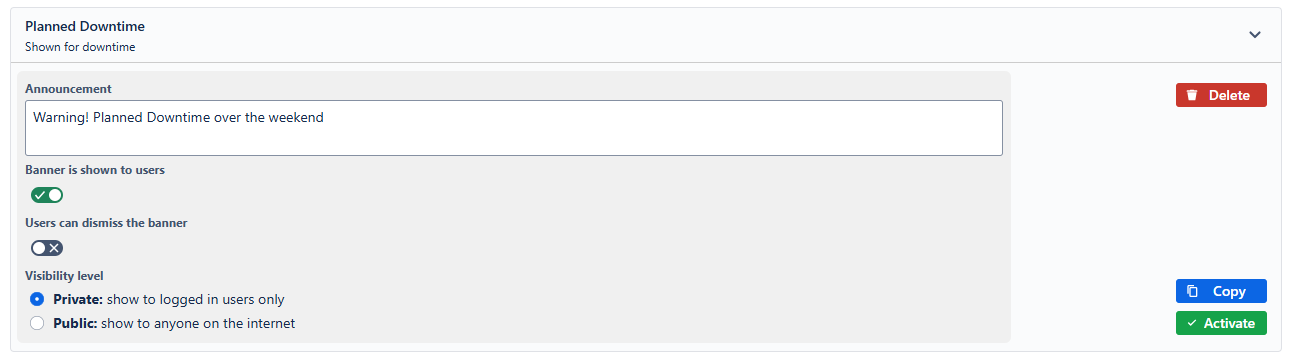
Next, find the template in the list, select it, and “Activate” to publish the announcement to your users. Make sure to select the appropriate visibility settings!
-
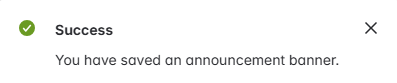
After clicking Activate, you should see a success banner like this one:
-
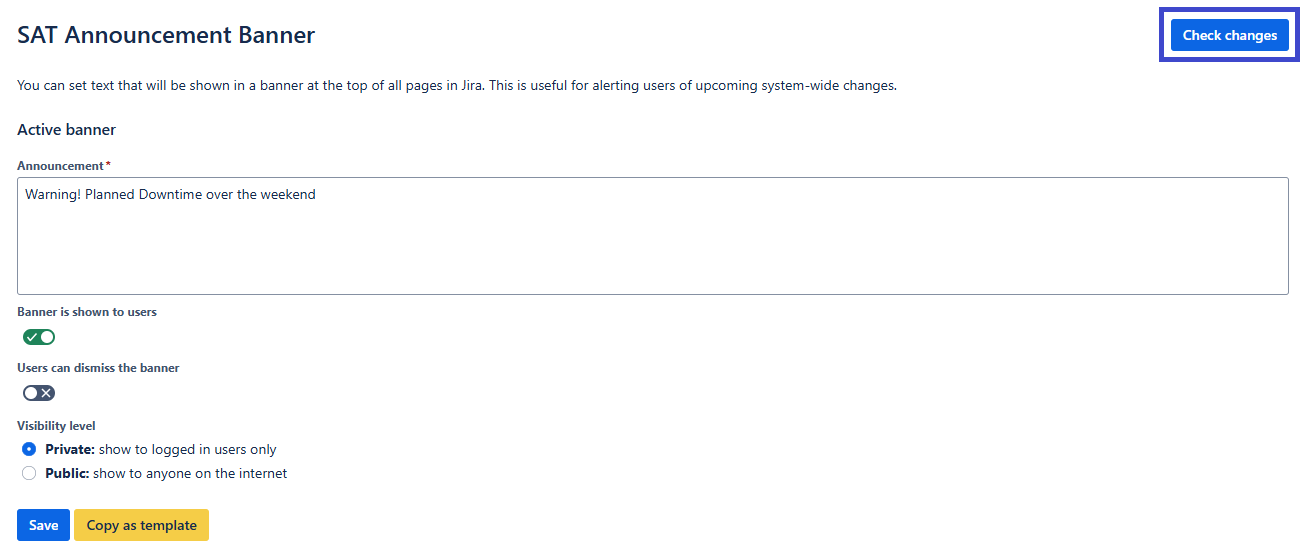
To see the changes in the banner, click the button “Check change” on the top right corner of the page, or simply refresh the page!
Disable the Announcement Banner
-
Open the active template
-
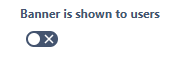
deactivate the option “Banner is shown to users”
-
click "Save"
Feature: Custom fields
-
Go to “Apps” → “Support Admin Tools” : “Custom fields” option
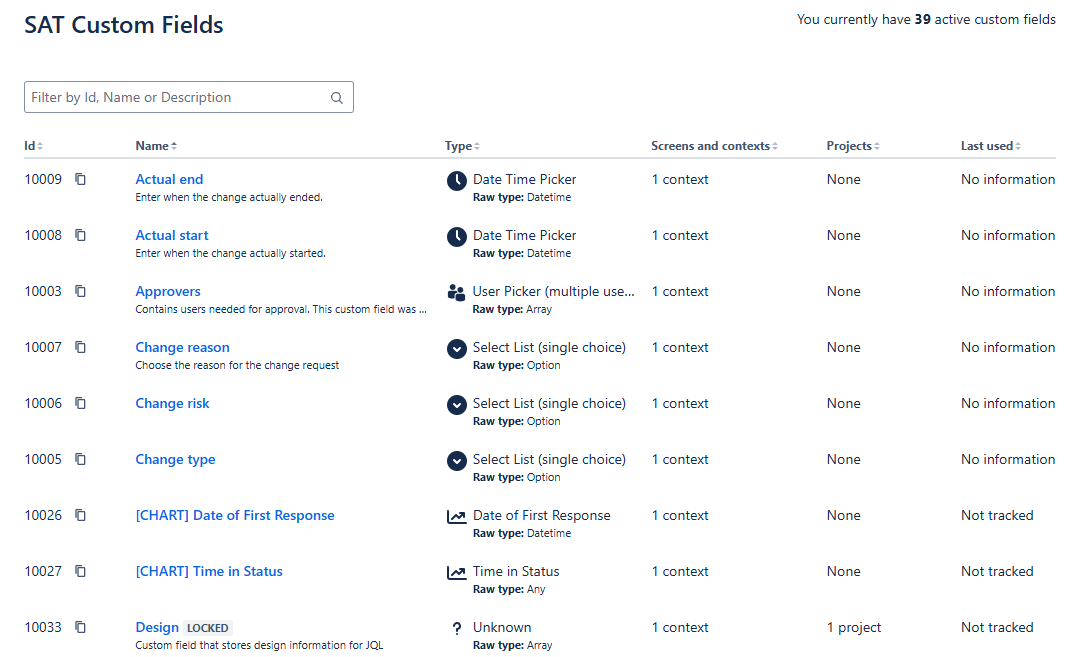
This view exposes the ID of the custom fields that are so difficult to see in Jira Cloud. These custom fields are very commonly required for development purposes such as integrations.
Simply filter by ID, Name or Description, and copy the Id in your clipboard.