Breadcrumbs

🚀Getting started

Install the App

Step 1: Install add-on in your Jira Cloud instance (by a Jira Admin)

Follow the classic way to install using the Find new apps, as shown below
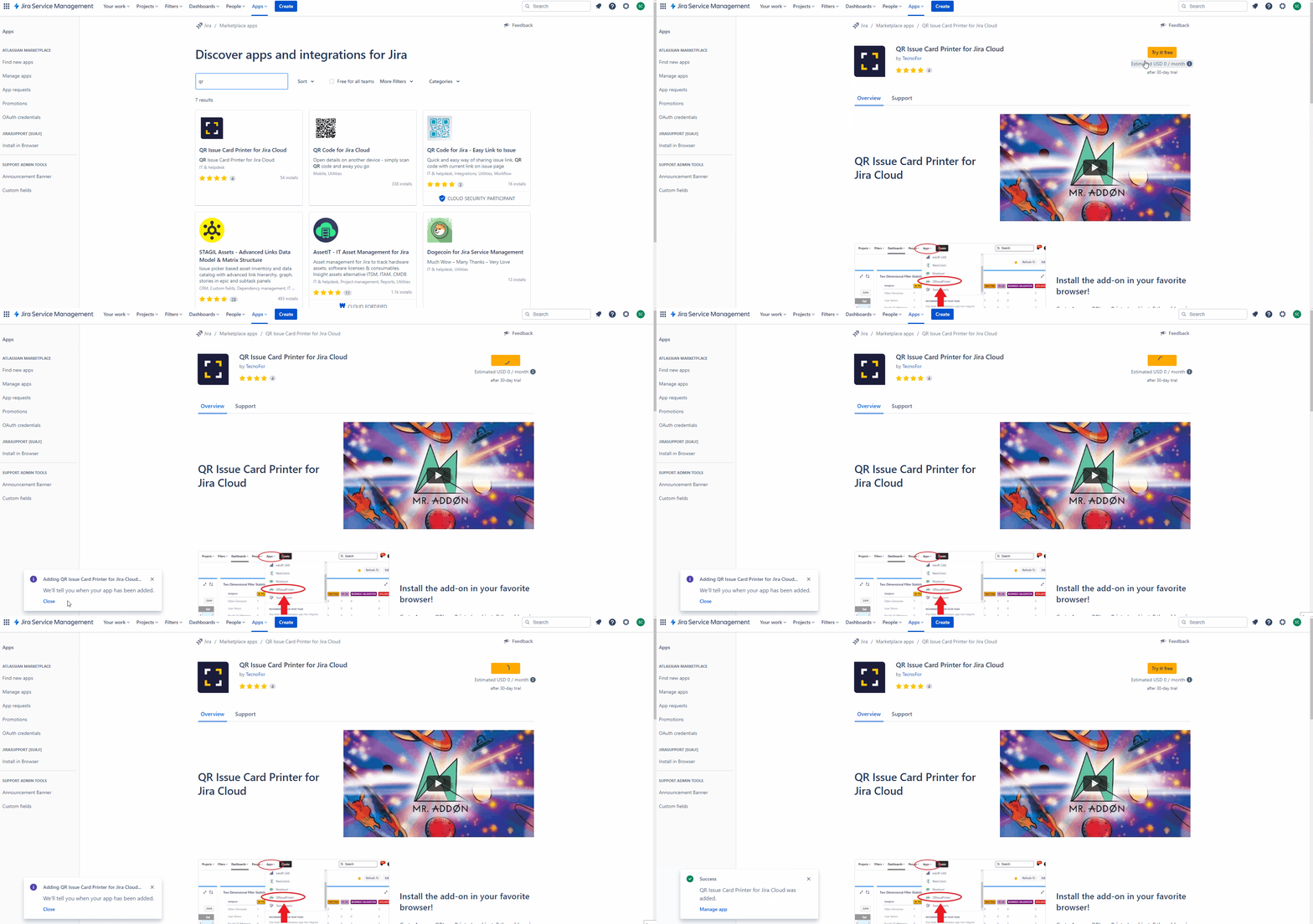

https://confluenceextranet.tecnofor.es/download/attachments/79954107/qrgif.gif?version=1&modificationDate=1678803743835&api=v2

That’s all Jira Admin! Now is turn of the users!

Step 2: Install add-on in your favorite browser! (by the Users)

Go to Apps → QRIssuePrinter! and install the add-on in your favorite browser
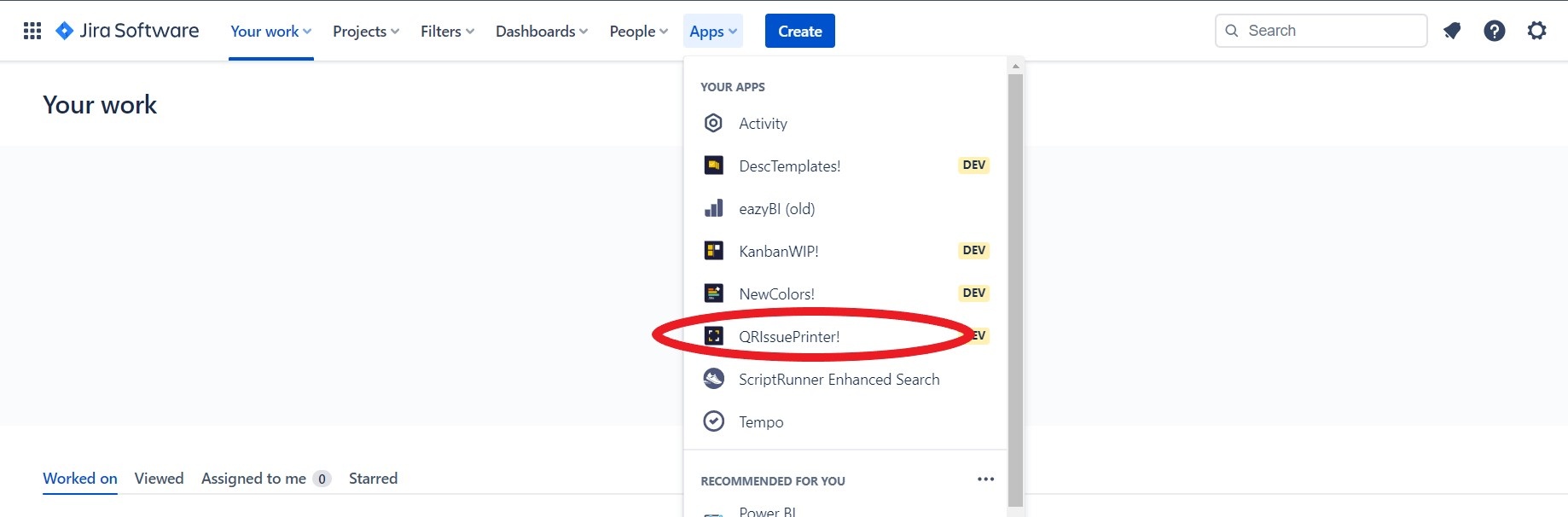
https://confluenceextranet.tecnofor.es/download/attachments/79954107/qr.jpg?version=1&modificationDate=1678724420193&api=v2

A page will open where you must click the "Download your app" button
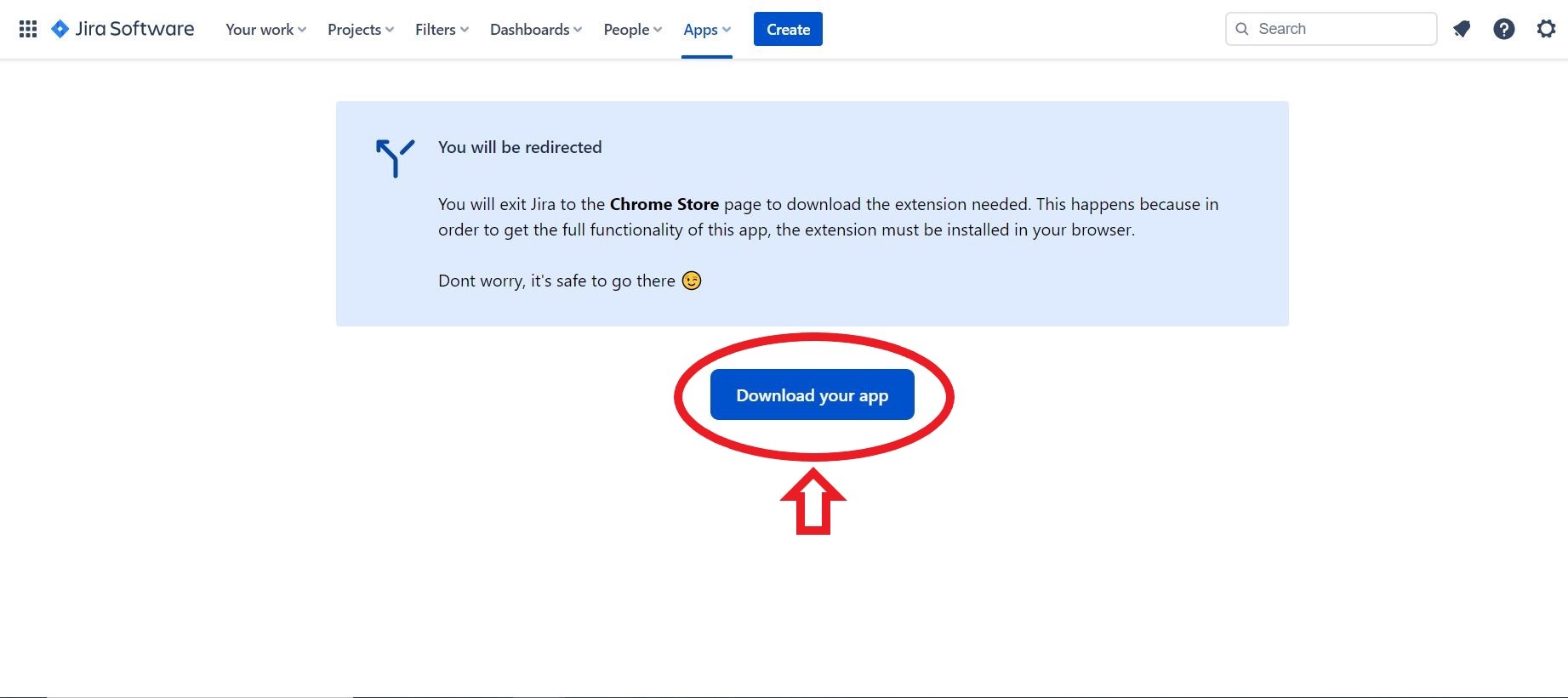
https://confluenceextranet.tecnofor.es/download/attachments/79954107/kanban2.JPG?version=1&modificationDate=1678724491951&api=v2

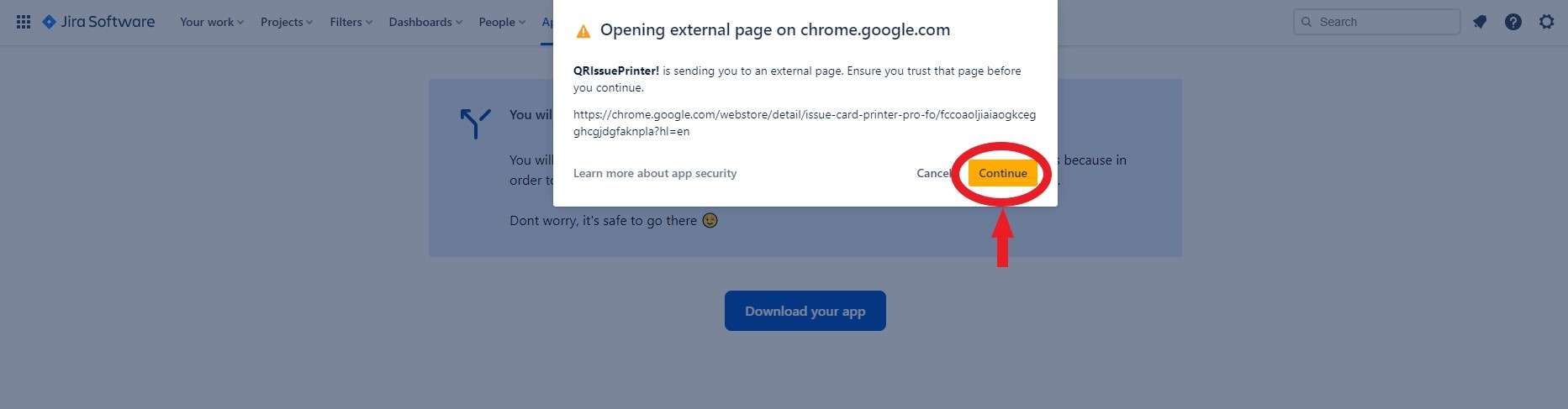
A new window will appear to warn that it is an external link. Click on continue
https://confluenceextranet.tecnofor.es/download/attachments/79954107/qr2.jpg?version=1&modificationDate=1678786129269&api=v2


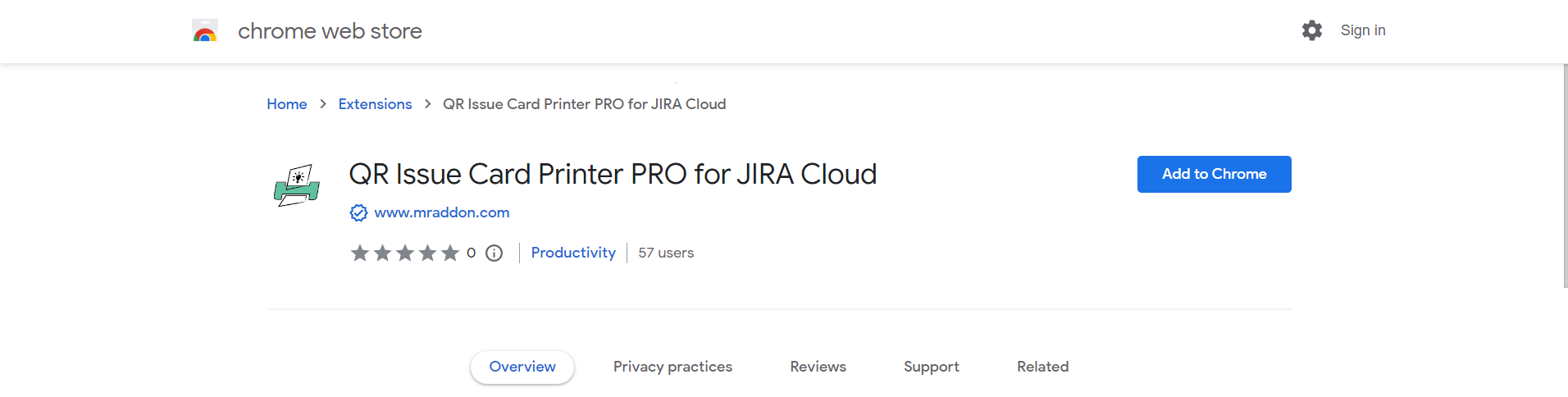
Directs you to the browser's web store. Add the plugin to the browser 

https://confluenceextranet.tecnofor.es/download/attachments/79954107/image2023-3-13_17-23-17.png?version=1&modificationDate=1678724598013&api=v2


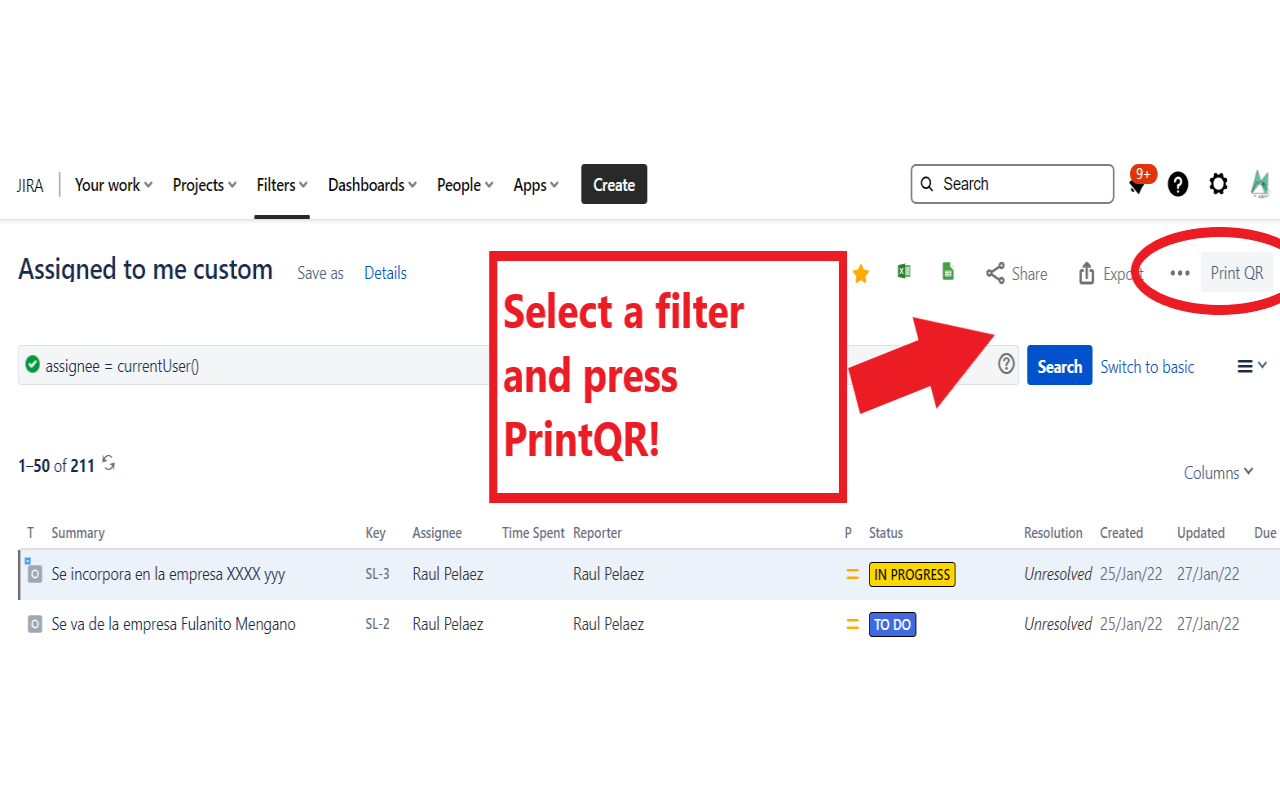
That’s all! Now take a look in your Issues, Filters and Kanban/SCRUM boards and backlogs and you will see a new button “Print QR


https://confluenceextranet.tecnofor.es/download/attachments/79954107/MrAddon.com%20-%20JIRA%20-%20Google%20Chrome%2017_05_2022%2018_59_31.png?version=1&modificationDate=1652878806937&api=v2