
/*<![CDATA[*/ div.rbtoc1770120352663 {padding: 0px;} div.rbtoc1770120352663 ul {list-style: disc;margin-left: 0px;} div.rbtoc1770120352663 li {margin-left: 0px;padding-left: 0px;} /*]]>*/ What Does This Plugin Do? Adding a Tooltip Creating a Tooltip With a Web Link Tips
What Does This Plugin Do?
The Tooltips plugin allows authors to add content as tooltips within a page that pop up when a user hovers the mouse cursor over the page element containing the tooltips.
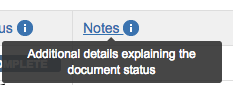
This is a great way to enhance your documentation without adding clutter to your pages. This plugin allows this functionality entirely through the link dialog so that no macros are necessary.
Adding a Tooltip
You can add a tooltip over any wiki content that supports links. To add a new tooltip:
-
In the page editor, highlight the desired text, images, or elements
-
Click the

-
Select the "Tooltip" tab on the left
-
Enter the text you'd like to appear in the tooltip in the "Tooltip Text" field and click Save
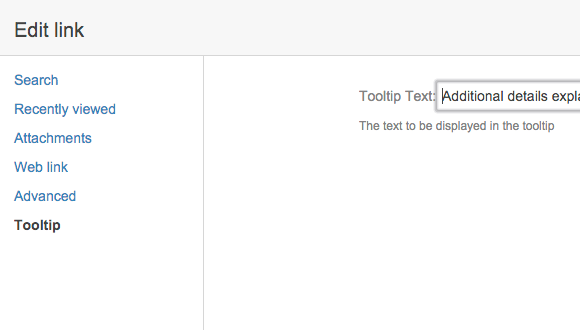
Creating a Tooltip With a Web Link
If you'd like to create a tooltip that also links to another URL:
-
In the page editor, highlight the desired text, images, or elements
-
Click the
-
Select the "Web link" tab on the left
-
Enter the link address
-
Select the "Tooltip" tab on the left
-
Enter the text you'd like to appear in the tooltip in the "Tooltip Text" field and click Save
Tips
-
Use tooltips in table headers to keep tables more compact
-
Add them to status lozenges to add details
-
Confluence provides useful emoticons you can use to provide tooltips
-
Shortcuts for useful emoticons:
Emoticon
Shortcut
(information)
(i)
(question)
(?)
(warning)
(!)