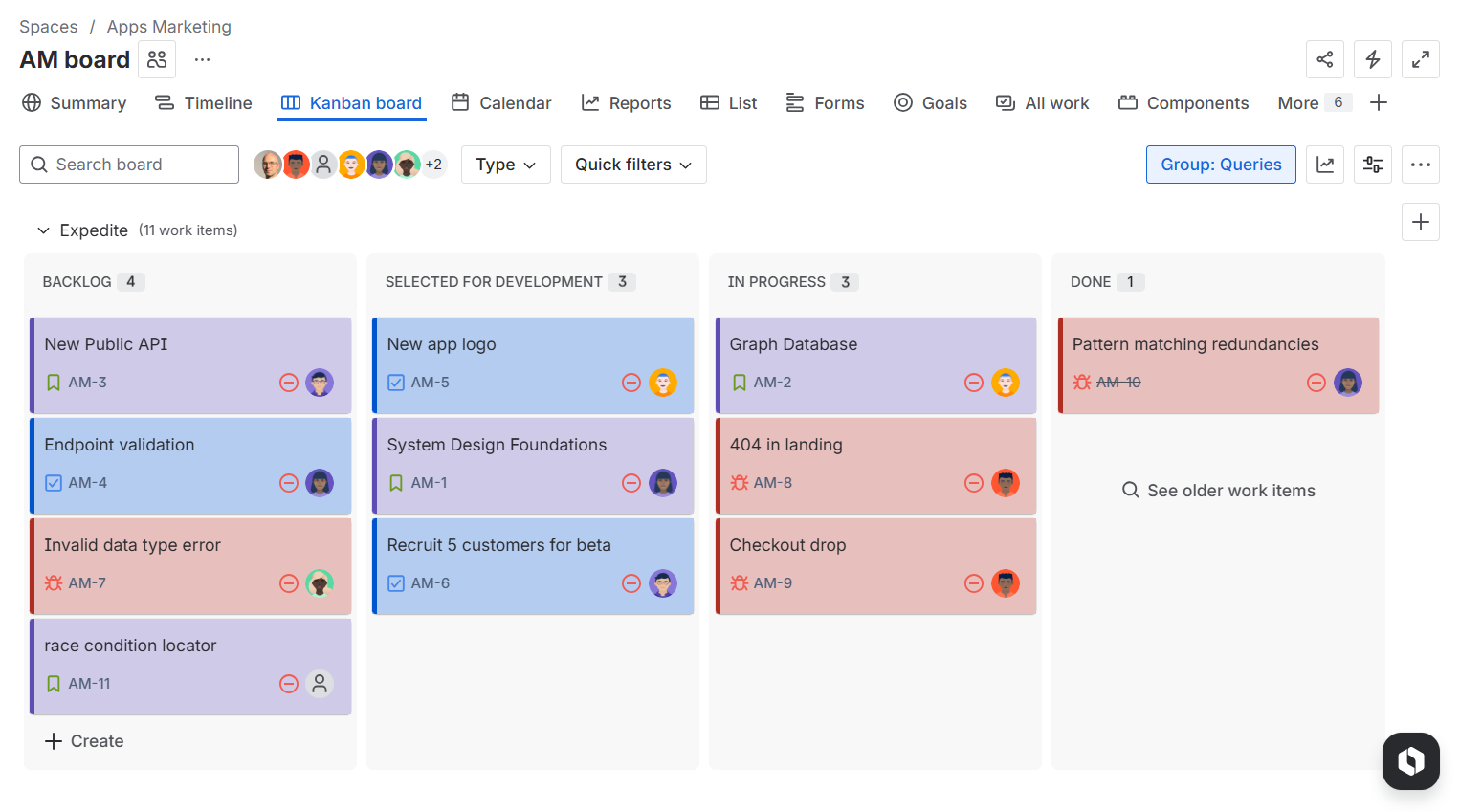
You will no longer need to squint to understand whether that card ribbon is light orange or yellow!
The configuration of card colors happens natively in the Board Settings of Company-Managed spaces, as indicated in the Atlassian documentation.
No need to follow the link, though. Just follow the steps below, with updated screenshots of the new Jira UI 🙂
How to configure card colors in your Jira Boards
Card colors in Jira are configured for each board.
Step 1. Open board settings
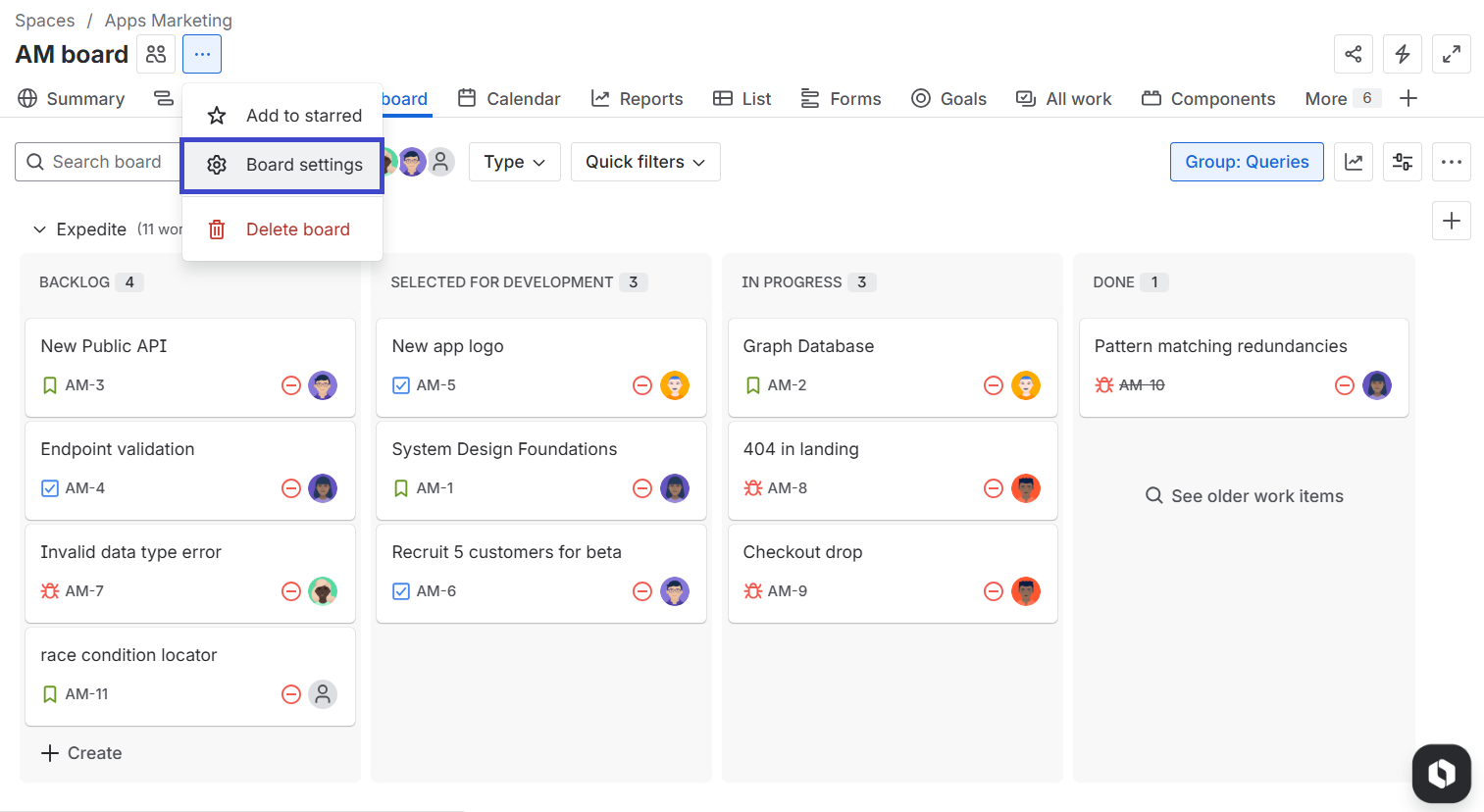
To find the configuration, locate the board that you want to set and open the board settings.
-
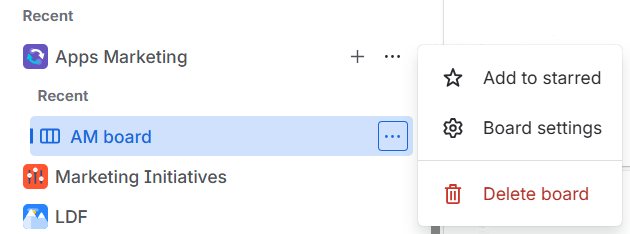
From the side navigation, by accessing the space where the board is located.
-
Or from the board itself, just clicking on the three-dot icon next to the board name
Step 2: Define the color variable for your cards
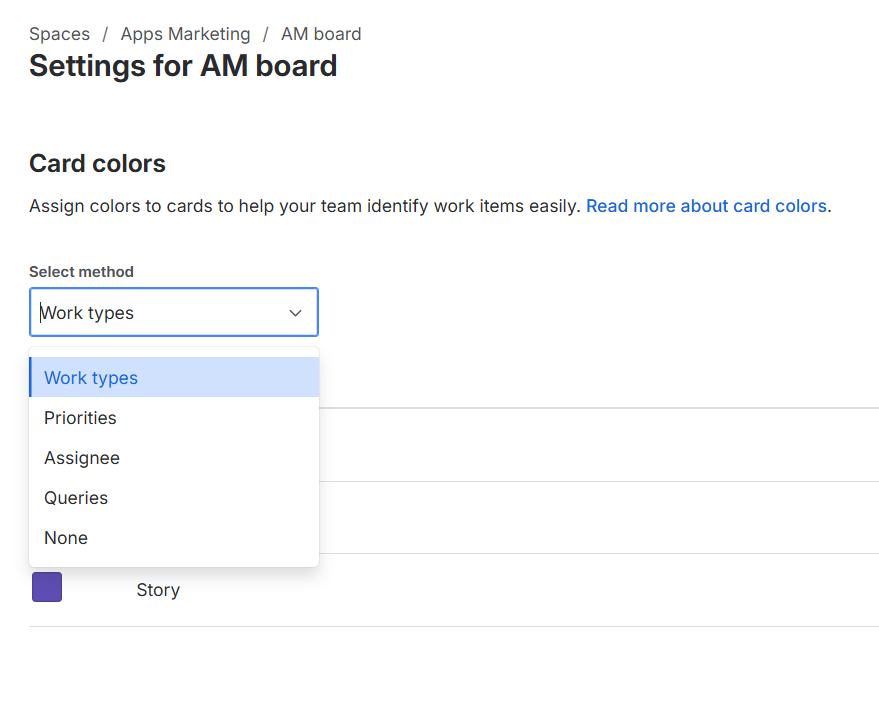
Once in the board settings menu, click on Layout > Card Colors on the left navigation
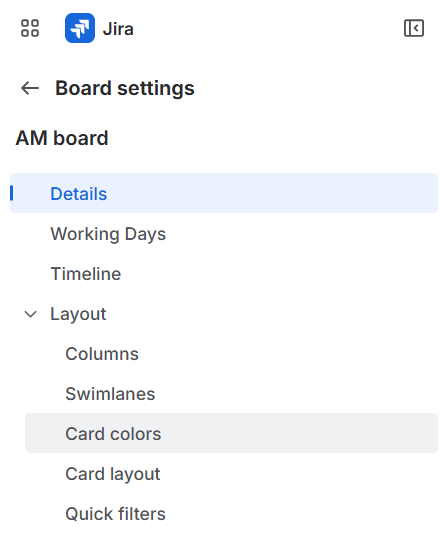
Once here, you can choose whether you want to colorize Jira cards based on Work Types, Assignee, Priorities, or Queries.
Step 3: Return to the board
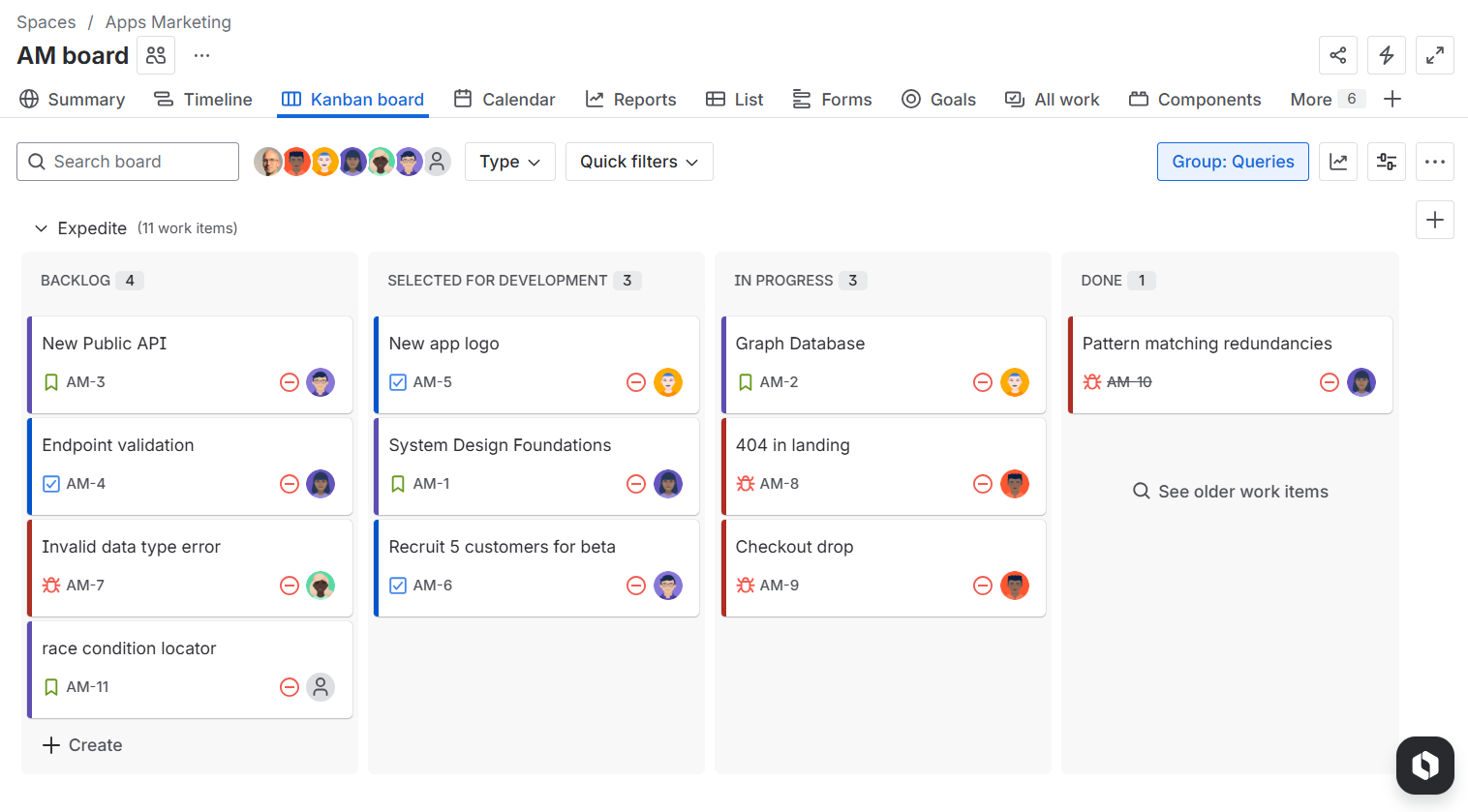
Go back to the board to see the result:
Step 4: Activate the Companion Extension to Kanban Combined WIP and Card Colors for Jira Boards
If your browser already has the Companion Extension enabled, then you will directly see something like this: